How to set up and start Disconnect Rob Run
Setup for Disconnect Rob Run on Windows 10 and 11: runtimes, security software, the Discord Legacy Overlay setting, the custom loader and your key.
Mandatory step: turn TPM off in the BIOS
TPM must be off for Rob Run. Follow the steps in order.
- Turn BitLocker off first. Type “Manage BitLocker” in the Start menu (Windows Home: Settings > Privacy & security > Device encryption). If it is on, save your recovery key somewhere outside this PC, turn encryption off and wait until it finishes. If you skip this, Windows asks for the recovery key once TPM is off, and without that key you cannot get to your files.
- Make sure you know your Windows account password. The sign-in PIN may stop working once TPM is off.
- Restart the PC and enter the BIOS (usually Del or F2 during startup).
- In the Security, Advanced or Trusted Computing menu set TPM to Disabled. On Intel it is usually called Intel PTT, on AMD AMD fTPM. Do not use “Clear TPM”.
- Save and exit (usually F10). In Windows press Win + R and type tpm.msc: it should say “Compatible TPM cannot be found”.
Follow this guide from top to bottom before starting Disconnect Rob Run. Do not skip steps. If you contact support, tell us which step failed.
Part 1: Preparing your PC
- Uninstall third-party antivirus software, Windows Defender real-time protection and any active anti-cheat service. Riot Vanguard and FACEIT Anti-Cheat must be uninstalled; turning them off is not enough.
- Download and extract Visual-C-Runtimes.zip (lewislitt.life/Store/Downloads/Visual-C-Runtimes.zip), right-click install_all.bat and choose Run as administrator.
- Download and install the Microsoft DirectX Runtime (microsoft.com/en-us/download/details.aspx?id=35).
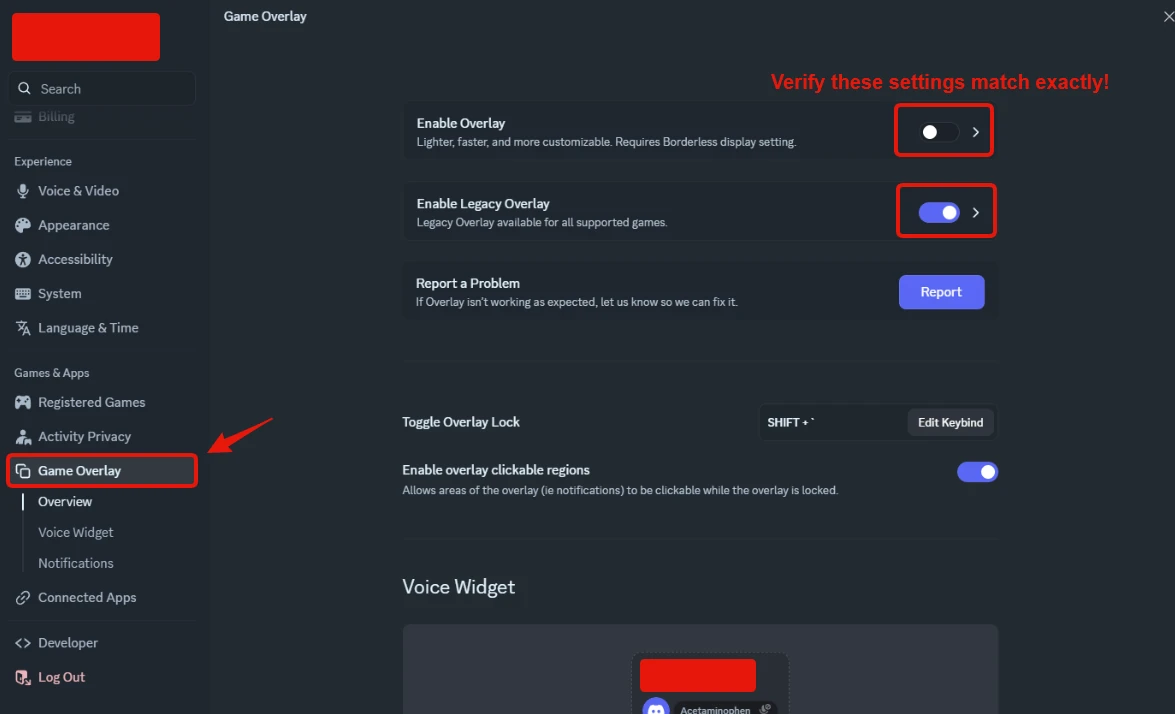
- Set up Discord: open User Settings, then Game Overlay. Enable Overlay must be off and Enable Legacy Overlay must be on. The settings must match the screenshot below exactly, otherwise the menu will not show.
Part 2: Loader login and injection
- Open cheezit.life, enter your license key and wait for your custom loader build to download. Your key and this link are on your order page.
- Open the loader application.
- Log in with your existing account, or create a new account with your license key.
- Go to the Products page inside the loader, select Rob Run and click Inject.
Part 3: Troubleshooting
Injection fails
Log out and back in, then try injecting again. Many issues resolve on retry.
Session errors
Launch the loader only once per session. Multiple launches can invalidate sessions.
ESP lags or does not respond
Turn V-SYNC on in the game settings and lower your in-game graphics settings.
Shaky ESP
Turn off Anti-Aliasing and NVIDIA DLSS in your game settings.
Menu or overlay not showing
Make sure Discord is running, Enable Legacy Overlay is on and Enable Overlay is off. Run the game in Borderless window mode and start the loader while Discord is open.
The loader page does not load or asks for a VPN
Install TunnelBear (tunnelbear.com), turn it on and try again.
If it still does not work, contact support on Discord with the product name, your key, the error message and the step where you got stuck.
Ready to play Rob Run?
Choose your plan